
How to prevent GitHub Copilot from accessing .env
GitHub Copilot suggests code as you type. To do that, it sends the file you're editing to a remote service. If that file is your .env, your API keys, database passwords and OAuth secrets leave your machine, and there's no taking them back.
In this article, we'll look at two ways to stop that in VS Code, and where those fixes stop helping.
Heads up: everything below only stops the inline suggestions inside your .env files, because properly blocking Copilot from reading them at all needs a paid Copilot Business or Enterprise plan, and even that has gaps: it doesn't cover Edit mode, agent mode or Copilot CLI.
The fastest fix: the Copilot icon
This takes about ten seconds:
- Create an empty file called
.envin a new empty project, and open it. - Check that the Status Bar says Dotenv and not Plain Text.
- Click the Copilot icon in the Status Bar (bottom right).
- Under Inline Suggestions, untick Ghost text suggestions for Dotenv. Ghost text is the grey suggestion Copilot shows ahead of your cursor, the one you accept with
Tab.
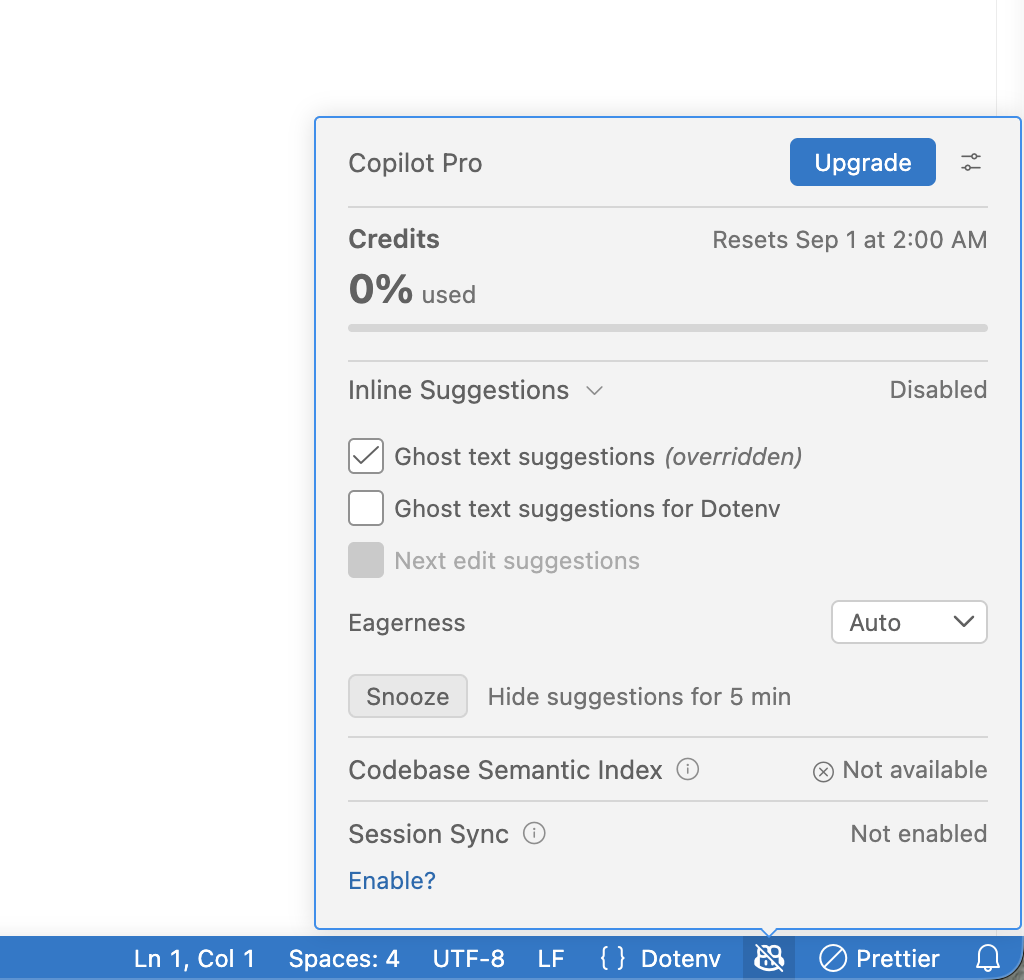
You'll know it worked when the Inline Suggestions row reads Disabled and the Copilot icon in the Status Bar has a line through it. The general Ghost text suggestions checkbox above it stays ticked, but it's now marked (overridden), because the per-language setting wins for this file.
You may be wondering why we use a test .env instead of the real one. The setting is per language, and the menu only offers the language of the file you currently have focused. A dummy file means you never have to open the one with the real secrets in it.
If the Status Bar says Plain Text instead, VS Code doesn't recognise the file as Dotenv, so the menu won't offer you that checkbox at all. That's rare on a recent VS Code, but there's a note further down for when it happens.
That's the quick fix in place. Don't stop reading here though, because it only covers the suggestions you see inside .env files. The limitations further down are the part that matters.
Doing it in settings
The checkbox just writes a setting called github.copilot.enable. It's worth seeing it directly (Cmd+Shift+P / Ctrl+Shift+P → Preferences: Open User Settings (JSON)):
{
  "github.copilot.enable": {
    "*": true,
    "plaintext": false,
    "markdown": false,
    "scminput": false,
    "dotenv": false
  }
}
Breaking down the code: github.copilot.enable is a map of language identifier to a boolean, and "*" is the fallback for every language you haven't listed. The first four entries are the default. "dotenv": false is the line we're adding. The identifier is lowercase here even though the menu and the Status Bar display it as Dotenv.
What about .env.local and .env.production?
Most projects don't have one env file, they have five. You might expect to need a files.associations entry to cover them all, and plenty of articles tell you to add one. You don't.
VS Code ships a built-in dotenv extension, and it already claims every one of these:
- Anything ending in
.env, sotest.envandsecrets.env. - The exact filenames
.env,.flaskenvanduser-dirs.dirs. - The pattern
.env.*, which is where.env.localand.env.productioncome from.
All of those are the same dotenv language, so the single "dotenv": false line covers the whole set.
Don't take my word for it though, and don't go poking at your real project to find out. Go back to the dummy project from the first section, add a .env.local and a .env.production next to your test .env, and open each one. If the Status Bar says Dotenv, that file is already covered. This is worth thirty seconds because the list above comes from the built-in extension, and which filenames it claims can change between VS Code versions.
Note: one common file misses out: .envrc, used by direnv. It doesn't match .env.* and it doesn't end in .env, so it stays Plain Text. If you use direnv, add "files.associations": { ".envrc": "dotenv" } to bring it into the fold.
Verify it works
Create a brand new empty folder, put a .env file in it with fake, dummy values, then start typing a new line like DATABASE_. No grey ghost text should appear.
Never test this in your real project with real credentials. Verify it in a throwaway folder first, then trust it.
What this does not cover
github.copilot.enable turns off completions, and nothing more. It stops ghost text while you're inside a .env file. It does not stop Copilot Chat or agent mode from opening that file and reading it when they decide they need the context.
So you've closed the most common accidental leak, the one where you're editing the file yourself. You haven't made .env invisible to Copilot.
Content exclusion: the stronger option
On Copilot Business or Enterprise there's a proper answer. Go to your repo on GitHub → Settings → Copilot → Content exclusion, and list the paths one per line:
# Only matches root files. Watch out when you have nested `.env` files.
- "/.env"
- "/.env.*"
Excluded files get no inline suggestions, don't inform suggestions in other files, and don't inform Copilot Chat's responses in ask mode. Organisations can set the same thing across repositories.
This is the strongest control Copilot offers, but "excluded" doesn't mean "invisible", and the gaps are worth knowing before you lean on it:
- It's a paid-plan feature for Organizations, so it isn't available on Copilot Free, Pro, or Pro+.
- It doesn't cover every mode. GitHub's docs are explicit that content exclusion isn't supported in Edit mode or agent mode of Copilot Chat, or in Copilot CLI. That leaves the most autonomous parts of Copilot, the ones that go and open files on their own, outside the rules entirely.
- Semantic information can still get through. The docs warn that Copilot may use information from an excluded file if the IDE provides it indirectly: type information, hover-over definitions for symbols, and general project properties like build configuration. For a
.envthat's more likely to surface variable names than the secrets themselves, but it's not a clean cut-off. - It doesn't apply to symlinks or to repos on remote filesystems.
Note: the rules don't take effect instantly. It can take up to 30 minutes for them to sync down from GitHub to your local IDE, whether that's VS Code, JetBrains or another editor. So if you still see suggestions in an excluded file right after saving the rules, wait it out before assuming you got the paths wrong.
One myth worth killing while we're here: there is no .copilotignore file. Plenty of blog posts tell you to drop one in your repo root. It does nothing.
Best practice: The most robust solution is to not have the secrets on disk at all. A secret manager (AWS Secrets Manager, HashiCorp Vault, Doppler) fetches values at runtime, so there's no .env file for any tool to read in the first place.
Make it a habit
Set both of those once in your user settings, and every project on your machine is covered from then on. It's the same instinct as .gitignore: you wouldn't commit .env to a public repo, so don't hand it to a tool that sends it off your machine either.
And if Copilot has already read your .env, treat every key in it as compromised and rotate. Rotation is cheap. A breach is not.
Each AI coding tool needs its own version of this. I wrote up the equivalent for Claude Code in Prevent Claude Code from accessing .env.